RELPZ now offers an API compatible with the OpenAI format, allowing you to use your assistants in third-party agent tools like OpenClaw and Hermes. In this guide, we will walk you through the step-by-step process to configure this integration.
Getting Your API Credentials
Before configuring any tool, you need to enable API access and get your credentials. Follow the steps below:
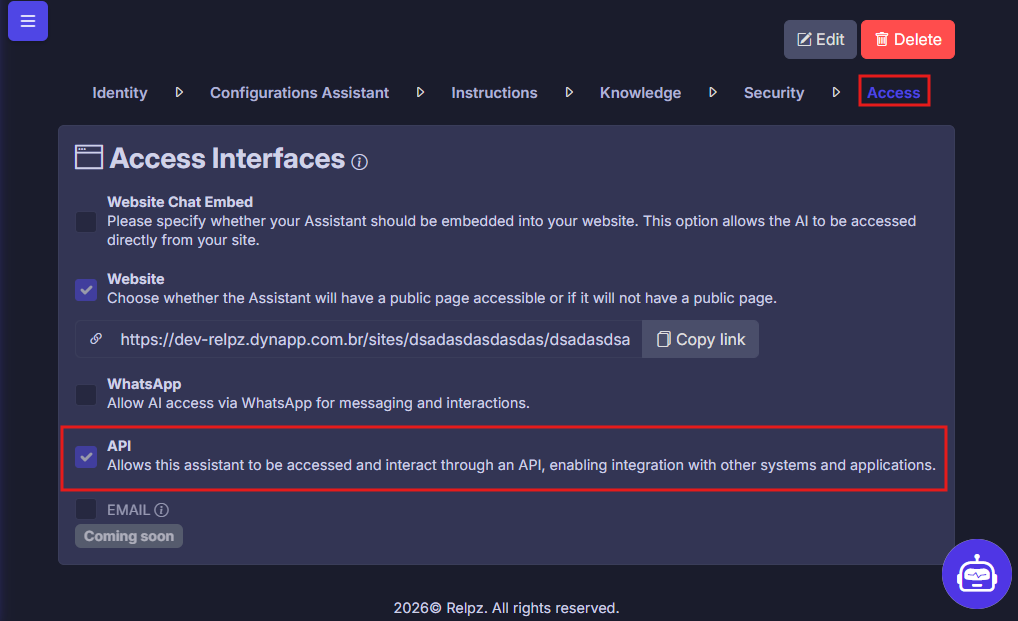
- In your assistant settings, under the "Access" section, enable the "API" option.
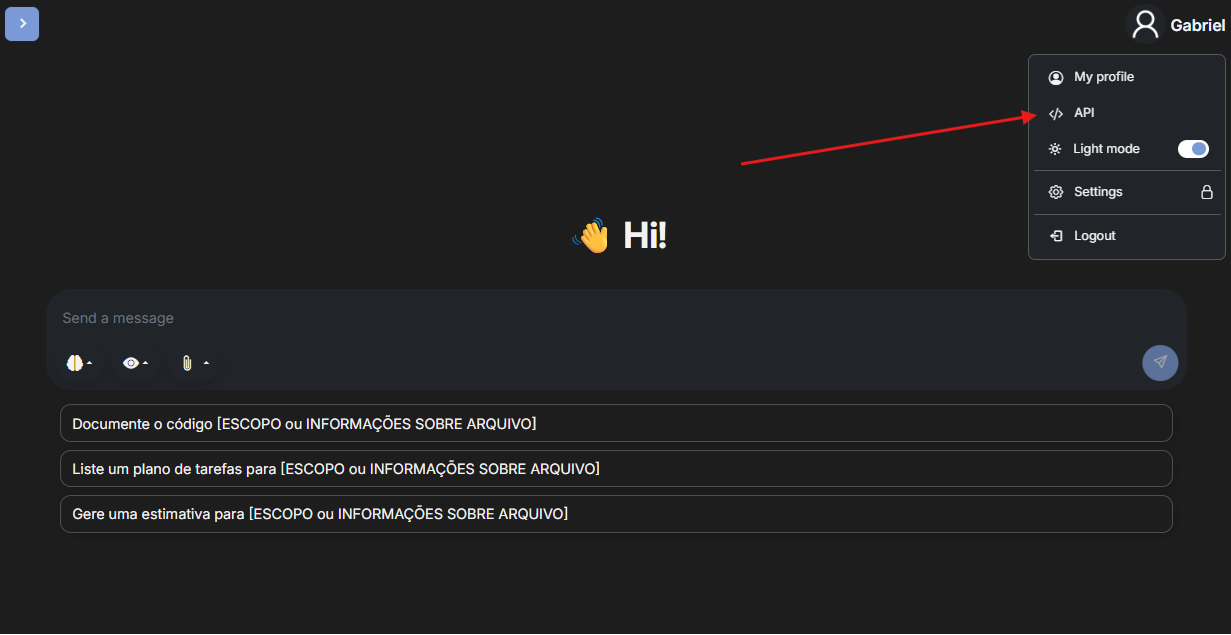
On the chat page, click your profile and then the "API" button.
In the management screen, copy the base API URL and generate your key.
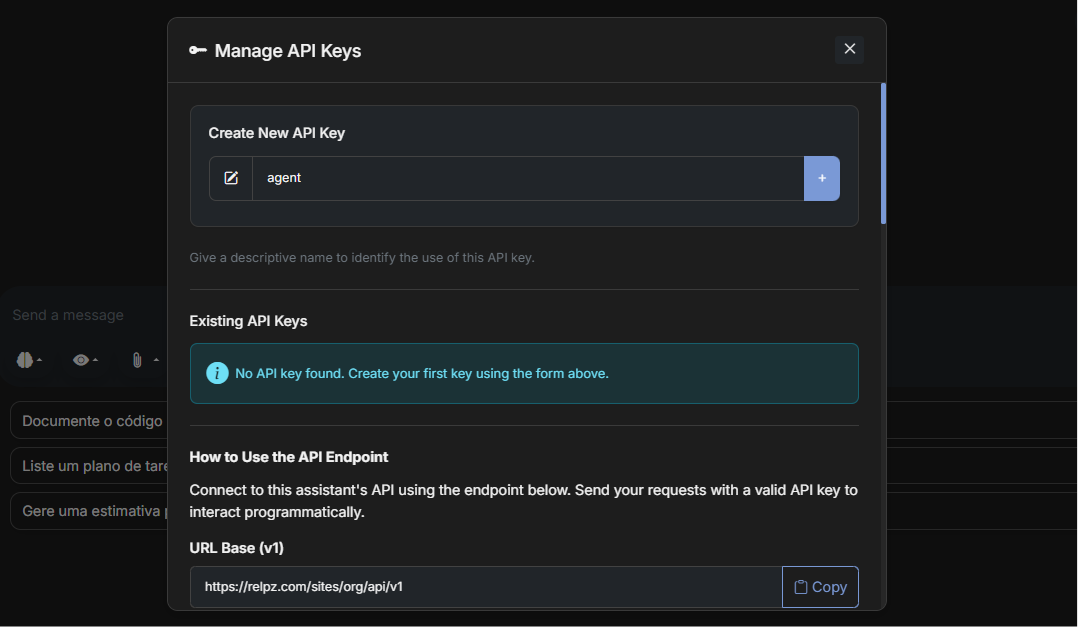
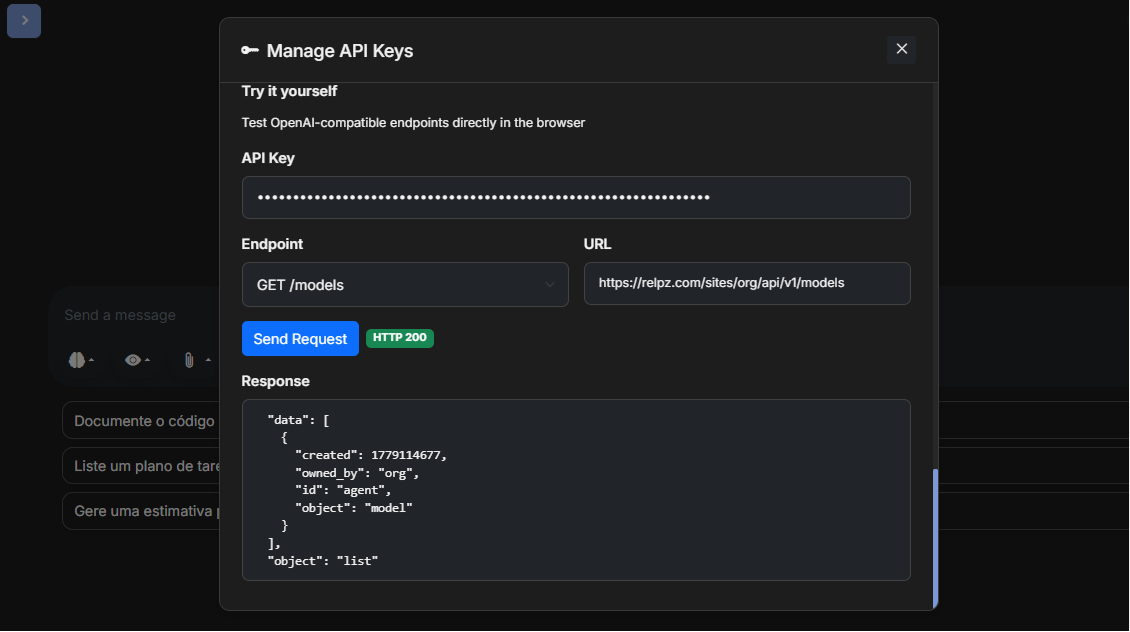
You can check the path of all your assistants enabled for API usage by making a request to /v1/api/models directly from the API key configuration modal.
OpenClaw Integration
First, you need to install the application from the official OpenClaw website, choosing your desired platform.
1. Run the configuration command
After installation, open your terminal and run:
openclaw configureYou will see the initial configurator screen:
🦞 OpenClaw 2026.5.12 (f066dd2) — I'm not magic—I'm just extremely persistent with
retries and coping strategies.

┌  OpenClaw configure
│
◇  Existing config detected ───────────────────────╮
│                                                  │
│  workspace: ~.openclawworkspace                │
│  model:                                          │
│  gateway.mode: local                             │
│  gateway.port: 18789                             │
│  gateway.bind: loopback                          │
│                                                  │
├──────────────────────────────────────────────────╯
│
◆  Where will the Gateway run?
│  ● Local (this machine) (No gateway detected (ws://127.0.0.1:18789))
│  ○ Remote (info-only)
2. Select where the gateway is running
Select Local (this machine) (default option).
3. Configure the model
In the "What do you want to configure?" option, select Model.
In Model/auth provider, select "More…" and then "Custom Provider".
Paste the base API URL you copied from RELPZ and your API key.
In Endpoint compatibility, select "OpenAI-compatible".
In Model ID, enter the path of the assistant you want to use. You can see the Model ID for each assistant by making a request to /v1/api/models through the API key configuration modal.
◇  What do you want to configure?
│  Model
│
◇  Model/auth provider
│  More…
│
◇  Model/auth provider
│  Custom Provider
│
◇  API Base URL
│
│
◇  How do you want to provide this API key?
│  Paste API key now
│
◇  API Key (leave blank if not required)
│  ▪▪▪▪▪▪▪▪▪▪▪▪▪▪▪▪▪▪▪▪▪▪▪▪▪▪▪▪▪▪▪▪▪▪▪▪▪▪▪▪▪▪▪▪▪▪▪▪▪▪▪▪▪▪▪▪▪▪▪▪
│
◇  Endpoint compatibility
│  OpenAI-compatible
│
◇  Model ID
│  agent
│
◇  Verification successful.
│
◇  Endpoint ID
│  relpz-com
│
◇  Model alias (optional)
│
│
◇  Does this model support image input?
│  Yes
Hermes Integration
To configure RELPZ in Hermes, follow the steps below:
1. Run the model selection command
hermes model2. Select "Custom endpoint"
In the provider list, select the "Custom endpoint (enter URL manually)" option.
  Current model:
  Active provider:

  Select provider:
  Select by number, Enter to confirm.

  (○)  1. Nous Portal (Nous Research subscription)
  (○)  2. OpenRouter (100+ models, pay-per-use)
  (○)  3. NovitaAI (AI-native cloud: Model API, Agent Sandbox, GPU Cloud)
  (○)  4. LM Studio (local desktop app with built-in model server)
  (○)  5. Anthropic (Claude models — API key or Claude Code)
  (○)  6. OpenAI Codex
  (○)  7. Qwen Cloud / DashScope Coding (Qwen + multi-provider)
  (○)  8. Xiaomi MiMo (MiMo-V2.5 and V2 models — pro, omni, flash)
  (○)  9. Tencent TokenHub (Hy3 Preview — direct API via tokenhub.tencentmaas.com)
  (○) 10. NVIDIA NIM (Nemotron models — build.nvidia.com or local NIM)
  (○) 11. GitHub Copilot (uses GITHUB_TOKEN or gh auth token)
  (○) 12. GitHub Copilot ACP (spawns `copilot --acp --stdio`)
  (○) 13. Hugging Face Inference Providers (20+ open models)
  (○) 14. Google AI Studio (Gemini models — native Gemini API)
  (○) 15. Google Gemini via OAuth + Code Assist (free tier supported; no API key needed)
  (○) 16. DeepSeek (DeepSeek-V3, R1, coder — direct API)
  (○) 17. xAI (Grok models — direct API)
  (○) 18. Z.AI / GLM (Zhipu AI direct API)
  (○) 19. Kimi Coding Plan (api.kimi.com) & Moonshot API
  (○) 20. Kimi / Moonshot China (Moonshot CN direct API)
  (○) 21. StepFun Step Plan (agent/coding models via Step Plan API)
  (○) 22. MiniMax (global direct API)
  (○) 23. MiniMax via OAuth browser login (Coding Plan, minimax.io)
  (○) 24. MiniMax China (domestic direct API)
  (○) 25. Ollama Cloud (cloud-hosted open models — ollama.com)
  (○) 26. Arcee AI (Trinity models — direct API)
  (○) 27. GMI Cloud (multi-model direct API)
  (○) 28. Kilo Code (Kilo Gateway API)
  (○) 29. OpenCode Zen (35+ curated models, pay-as-you-go)
  (○) 30. OpenCode Go (open models, $10/month subscription)
  (○) 31. AWS Bedrock (Claude, Nova, Llama, DeepSeek — IAM or API key)
  (○) 32. Azure Foundry (OpenAI-style or Anthropic-style endpoint — your Azure AI deployment)
  (○) 33. Vercel AI Gateway
  (○) 34. Qwen OAuth (reuses local Qwen CLI login)
  (○) 35. Alibaba Cloud Coding Plan — dedicated coding tier
  (○) 36. custom (direct API)
  (○) 37. Custom endpoint (enter URL manually)
  (○) 38. Remove a saved custom provider
  (○) 39. Configure auxiliary models...
  (○) 40. Leave unchanged

  Choice [default 37]: 37
3. Enter your credentials
Enter the API base URL you copied from the API usage modal in your assistant, along with the generated API key.
Custom OpenAI-compatible endpoint configuration:

API base URL [e.g. https://api.example.com/v1]:
API key [optional]:
4. Select the compatibility mode
Select the "Chat Completions" option.
Select API compatibility mode:
  1. Auto-detect
     Use Hermes URL heuristics; best for standard OpenAI-compatible endpoints.
  2. Chat Completions [current]
     Use /chat/completions for standard OpenAI-compatible servers.
  3. Responses / Codex
     Use /responses for Codex-compatible tool-calling backends.
  4. Anthropic Messages
     Use /v1/messages for Anthropic-compatible endpoints.
Choice [1-4, Enter to keep current/detected]: 2
5. Select the model
Hermes will automatically fetch the available assistants for API usage. Select the desired assistant.
Leave context length empty. The display name can keep the default value.
  API mode: chat_completions
  Available models:
    1. agent
  Select model [1-10] or type name: 1
Context length in tokens [leave blank for auto-detect]:
Display name [relpz.com]:
Default model set to: tester (via https://relpz.com/sites/org/api/v1)
You're All Set!
After following these steps, your RELPZ assistants will be configured and ready to use in both OpenClaw and Hermes. Simply start a conversation and the selected assistant will be used automatically.